Source Code: https://github.com/Konoca/Augmentation
Overview
Augmentation is a Java Swing desktop application designed to simplify the process of sharing custom Minecraft modpacks between friends for the Prism Launcher.
Normally if you wanted to share a modpack made in Prism, you would need to send a zip file of the entire Minecraft instance (which includes mods, configs, shaders, worlds, screenshots, settings, etc.). However, with Augmentation you can now share an Augment file that contains all of the mods that are needed (as well as any other specified files that might be needed) and Augmentation will automatically download everything with ease. This format also makes it much easier to make changes to modpacks, as Augmentation will compare what is currently installed vs the Augment file and will only make changes to match the Augment file.
How to Use
Before you begin, Augmentation currently requires Java 25 to be installed on your machine. Make sure you are also using the latest version of Prism!
Creating and Sharing your Modpack
In Prism, create a new instance and download all of the mods you would like.
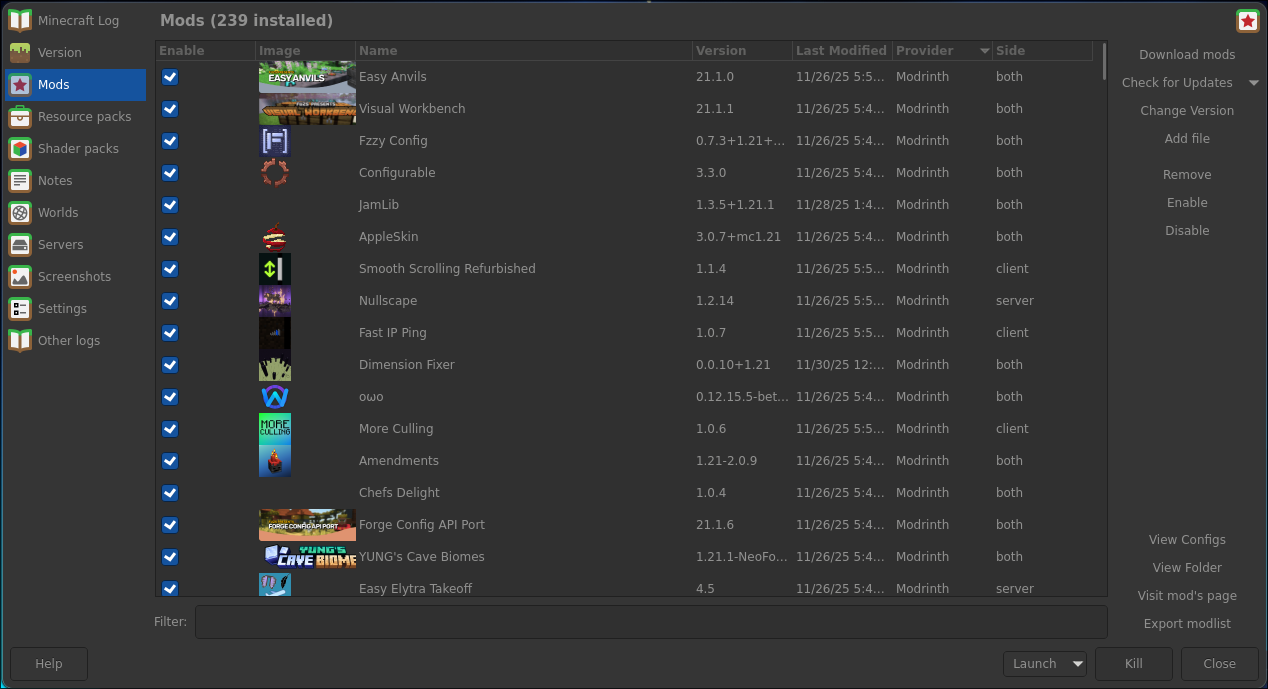
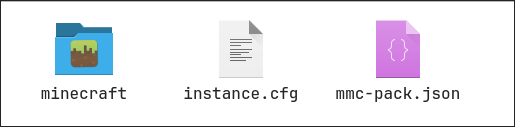
In Prism, click “Folder” on the right-hand side to open the root folder for the instance. You should see these folders / files (minecraft could also be .minecraft):
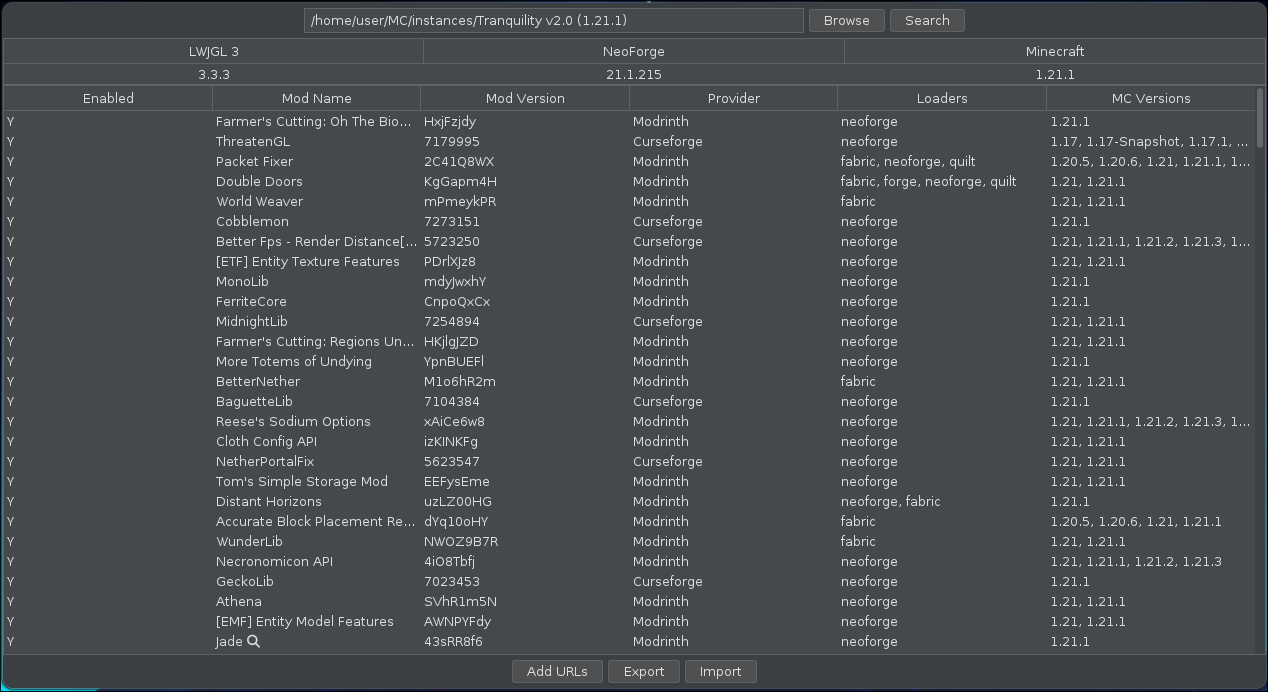
Open the path to this folder in Augmentation, you can either navigate using “Browse” or copy-and-paste the path and clicking “Search”.
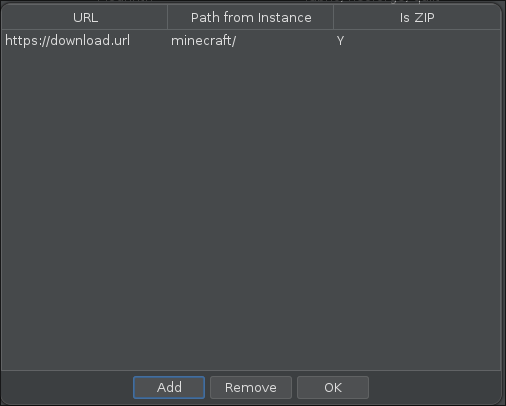
If you want to add additional files to download (such as configs), you can click “Add URLs” and add the direct download URL and where to download the file. If the file is a zip file, you can set “Is ZIP” to “Y”, or “N” if it isn’t.
When you’re ready, just click “Export” and save the .aug file!
How to Import a Modpack
If you are importing a new modpack using Augmentation, you will first need to open Prism and create a new instance.
If you are updating an existing modpack, skip to Updating a Prism instance.
Select the Minecraft and Mod Loader versions that are needed for your modpack:
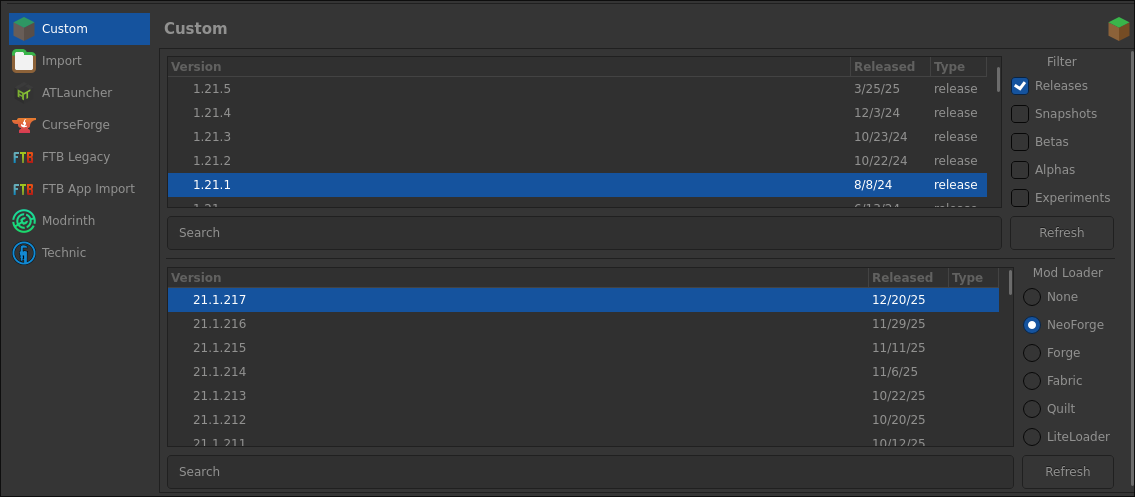
Open this new instance is created, you will need to launch the instance once in order to generate all necessary files.
Updating a Prism instance
In Prism, click “Folder” on the right-hand side to open the root folder for the instance. You should see these folders / files (minecraft could also be .minecraft):
Open the path to this folder in Augmentation, you can either navigate using “Browse” or copy-and-paste the path and clicking “Search”.
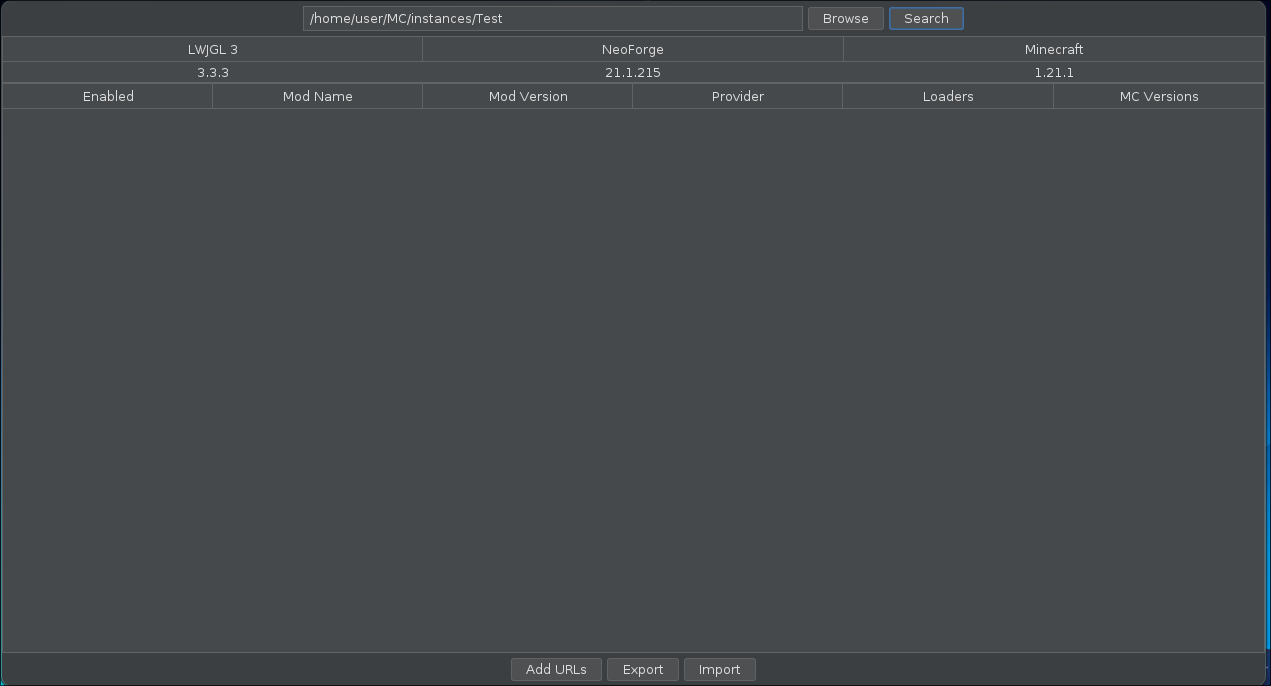
Click on “Import” and select the .aug file that will be shared with you.
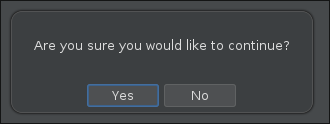
Once you agree to continue, you will be prompted to confirm all of the external file downloads in order to ensure nothing is downloaded without your knowledge.
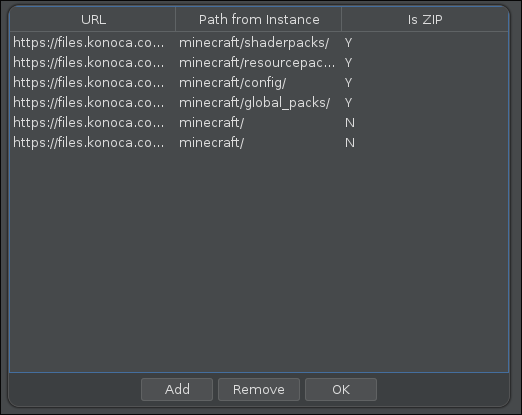
Click “Ok” if everything looks good. Everything will begin downloading, and you will be all set!